
How to Manage Multiple Email Accounts in One Place (2026 System)
The cleanest way to manage multiple email accounts is to keep each address separate, then combine the work: one place to see new mail, one queue for replies, one search across accounts, and one set of rules. Forwarding can imitate this, but a multi-account client or unified layer preserves the correct sending identity with less maintenance.
The distinction matters when the accounts belong to different parts of your life. A fractional CFO may have four client Workspace accounts. An agency owner may carry company Gmail, personal mail and a client’s Microsoft 365 address. Those identities should not be merged. The repeated checking should.
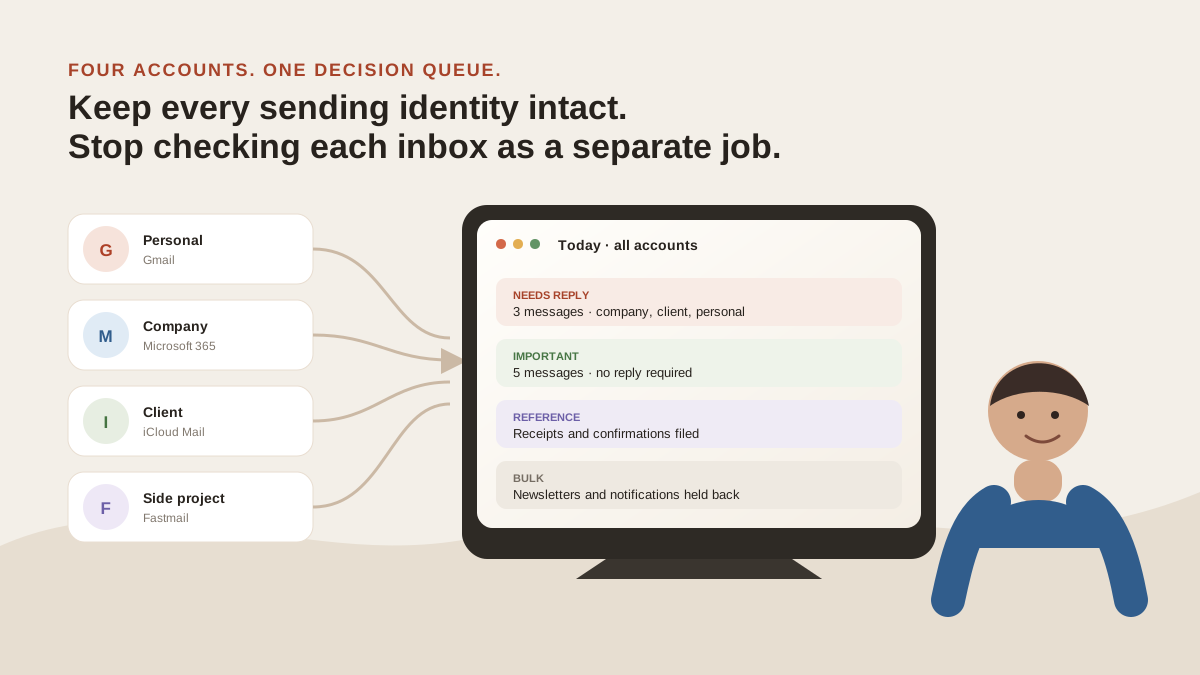
The accounts keep their own owners and sending addresses. Only the daily decisions come together. Original illustration for this guide.
What does “manage multiple email accounts” mean in practice?
It means solving four separate problems:
- Identity: which address owns the conversation and must send the reply?
- Collection: where can you see what arrived without opening five tabs?
- Decision: which messages need a reply, a read, a record or nothing at all?
- Boundary: which accounts must stay isolated because of security, policy or client ownership?
Most setups solve only collection. They put several inboxes in one app and stop there. That removes logins but leaves the real work untouched: search still happens account by account, the same rule is copied five times, and an empty inbox in one account says nothing about the others.
A durable setup combines decisions without blurring identity.
What currently ranks for this problem?
We classified the first ten organic Google results for how to manage multiple email accounts on 21 August 2026, using US English, desktop results and personalisation turned off. The SERP contained an AI Overview and People Also Ask. Of the ten organic results, 5 were general how-to or productivity guides, 3 were provider-specific setup pages or videos, and 2 were forum discussions.
| Rank | Page | Our classification |
|---|---|---|
| 1 | Reddit: best tool to manage multiple email accounts | Forum |
| 2 | Missive: practical guide | General vendor how-to |
| 3 | Carl Pullein: managing multiple accounts | Productivity how-to |
| 4 | IEEE Computer Society: five ways to manage multiple emails | General tips guide |
| 5 | Quora: services, tools and apps | Forum |
| 6 | Lisa McH: manage multiple inboxes | Productivity how-to |
| 7 | Shift: manage multiple email accounts | General vendor how-to |
| 8 | Crossware: multiple Outlook accounts | Outlook setup guide |
| 9 | Gmail Help: Multiple Inboxes | Provider documentation |
| 10 | YouTube: manage multiple accounts in Gmail | Gmail how-to video |
The split is useful. Searchers are not asking for one settings screen. They want a system, then the provider-specific steps that make it real.
Step 1: decide which accounts should continue to exist
Do not begin by choosing an app. Begin with ownership.
Keep an account when a different person, company or client owns it; when it needs a distinct sending identity; or when it has its own recovery and security rules. A client Workspace account is not a folder inside your personal Gmail. Your employer’s Microsoft 365 account is not something to forward casually because checking it is inconvenient.
Close or retire an account when it has no continuing job. Old shopping addresses and abandoned side-project accounts add another place to check without protecting a useful boundary. Before closing one, move the services that still use it and retain any records you are required to keep.
A simple account map is enough:
| Account | Owner | What belongs there | Reply identity | Can it be combined? |
|---|---|---|---|---|
| Personal Gmail | You | Family, travel, personal bills | Personal address | Yes, at the view level |
| Company Microsoft 365 | Employer | Company work | Company address | Only within company policy |
| Client Workspace | Client | Client projects | Client address | Yes, if the client permits it |
| Shopping address | You | Orders and promotions | Rarely used | Yes, or retire it |
This five-minute map prevents the worst failure later: sending from the right screen with the wrong identity.
Step 2: choose the narrowest collection method that works
There are four common ways to check all email accounts in one place. They are not equivalent.
| Approach | Works across providers? | One message view? | Search and rules across accounts? | Price | Honest gap |
|---|---|---|---|---|---|
| Browser account switching | Only inside each provider | No | No | Free | You still check and search each account separately |
| Forwarding to a master inbox | Usually, if the source allows it | Yes, as copied mail | Only after mail is copied | Usually free | Reply identity, threading and company policy need careful testing |
| Native multi-account app | Often | Sometimes | Depends on the app and platform | Often included | A combined list may not mean combined search, triage or rules |
| Cross-provider unified layer | Yes, for supported providers | Yes | Yes, when the product is built for it | Varies | Adds another service and inherits its provider and platform limits |
One caveat on the last row. If the method you are weighing is switching client entirely, the pricing pages are less comparable than they look: our Spark comparison sets the real monthly rates beside the limits Spark puts on AI history and credits.
Use switching for two low-volume accounts. Use a native combined view when it already covers your providers and devices. Use forwarding only when you understand exactly what happens to replies and when policy allows mail to leave the original environment.
A separate unified layer is justified when the question is no longer “where did mail arrive?” but “what needs me across all of it?”
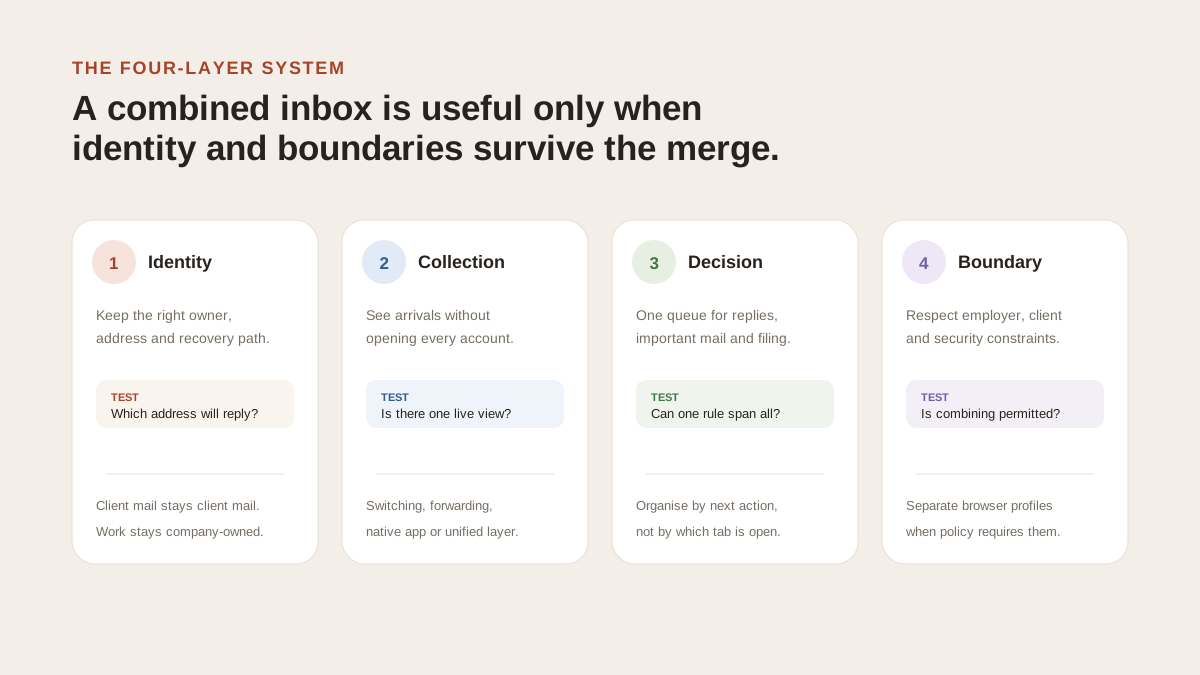
Collection is only one layer. A reliable system also preserves identity, creates one decision queue and respects account boundaries. Original infographic for this guide.
Step 3: create one decision queue, not one giant unread pile
A combined chronological list can make a bad situation denser. The useful unit is not the account or the unread count. It is the next decision.
Use four outcomes:
- Needs reply: another person is waiting for you
- Important, no reply: worth reading or acting on elsewhere
- Reference: receipts, confirmations and records that should stay searchable
- Bulk: newsletters, marketing and routine notifications that do not belong in the working queue
This is where several accounts become manageable. You stop finishing Gmail, then Outlook, then the client inbox. You finish the reply queue across the set.
Keep the taxonomy small. Twelve clever folders become twelve places to inspect. Four trustworthy outcomes are easier to maintain, especially when rules do part of the filing.
Step 4: make search and rules cross the same boundary as the inbox
A visual All Inboxes list is useful until you need the proposal sent three months ago and cannot remember which client address received it. If search still asks you to choose an account first, the system is only partly combined.
Test three things before committing to a tool:
- Can one query search every connected account?
- Can one rule apply to the whole set?
- Does every result show the source account before you reply or archive it?
The third test is easy to ignore. Account tags are not decoration. They are how you avoid replying to a client from a personal address or filing a company message under a personal rule.
Step 5: preserve the boundaries that matter
Some separation is healthy.
Use separate browser profiles when employer or client policy requires a hard boundary. Keep different recovery methods and two-step verification on accounts with different owners. Do not import or forward regulated or confidential mail into a personal environment without permission.
Then remove boundaries that exist only because the software is awkward. Repeating the same invoice rule in five accounts does not improve security. Searching five times does not protect client data. A combined working view can reduce that repetition while the accounts remain independently owned.
How Gmail and Outlook handle several accounts
Google’s multiple-account sign-in lets you switch accounts without signing out. Google says the settings remain separate, although the default account’s settings can apply when it cannot tell which account you intend to use.
The Gmail apps for Android, iPhone and iPad go further. Google’s account setup guide documents Gmail and non-Gmail accounts, including Outlook, iCloud Mail and Yahoo, plus an All inboxes view. Gmail on the web is different: Multiple Inboxes creates search-based sections inside one account. It is not the same live cross-account view.
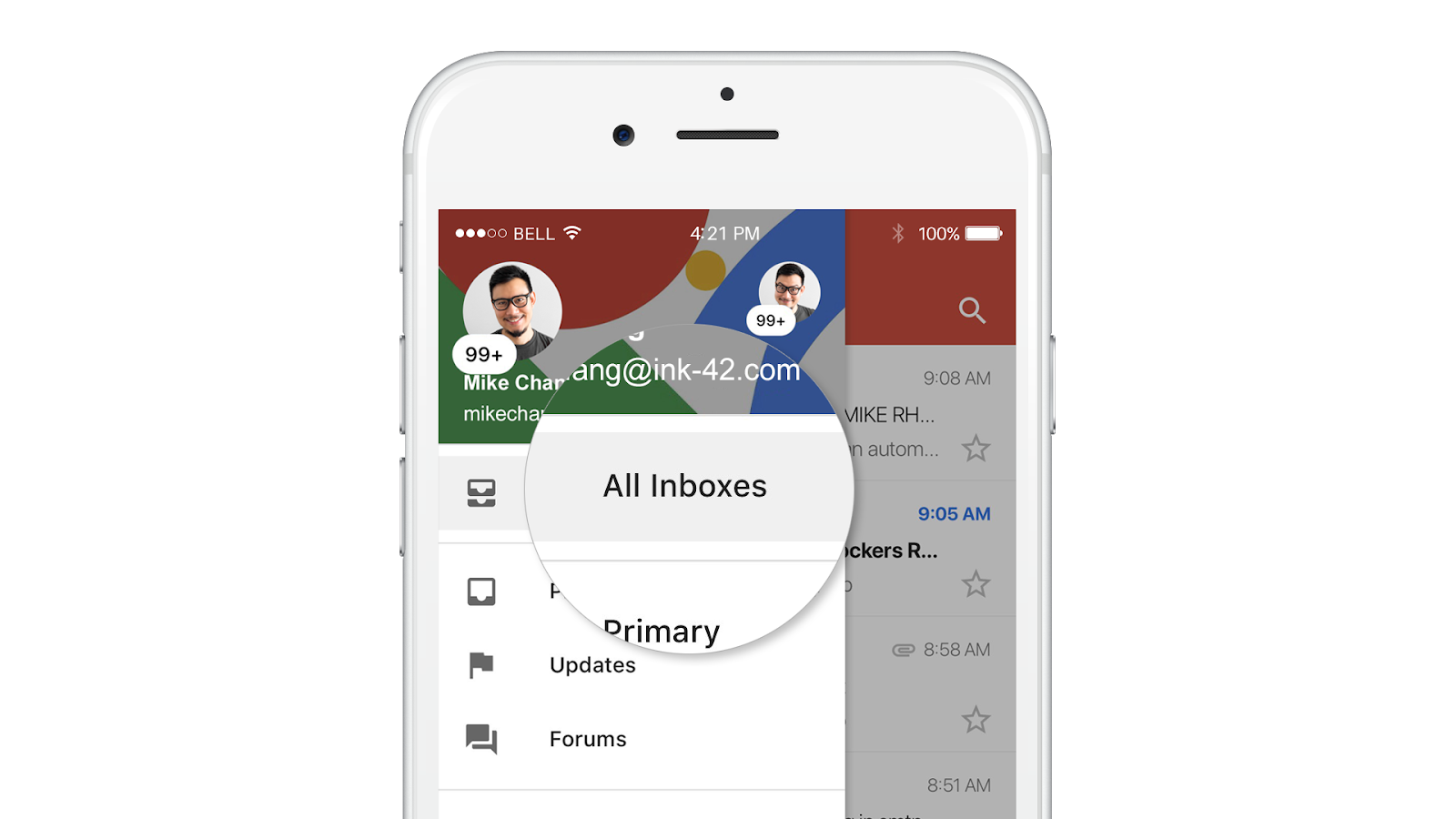
Gmail mobile offers All inboxes across added accounts. Gmail web’s Multiple Inboxes is a different, search-section feature inside one account. Source: Google Workspace Updates, checked 21 August 2026.
Google is also retiring Gmailify and POP-based Check mail from other accounts. It stopped accepting new users after the first quarter of 2026; existing setups continue until January 2027. Google’s documented alternatives are provider forwarding on the web or adding the account to Gmail mobile through IMAP.
Yahoo is the clearest case where those routes now diverge. How to Forward Yahoo Mail to Gmail in 2026 compares Yahoo Mail Plus forwarding, Gmail mobile IMAP, one-time import and a custom IMAP-to-Gmail API bridge.
Microsoft documents a combined All Accounts inbox in its mobile Outlook app and a unified Inbox under All Accounts in Outlook for Mac. The exact experience depends on the Outlook version, so verify the device you actually use instead of treating “Outlook” as one product.
For Gmail-only setups, see one list for several Gmail accounts. For the difference between a combined list and a full cross-account workflow, read What Is a Unified Inbox?.
A practical system for three to six accounts
Here is the version that survives a normal week:
At the start of the day: open one cross-account reply queue. Deal with messages where another person is waiting. Check the source account before sending.
During the day: let urgent company or client notifications reach you, but keep routine mail out of the interruption path. A notification from every account is not a unified system; it is five inboxes shouting at once.
Once a day: review important mail that did not need a reply. Turn real tasks into tasks rather than leaving messages unread as reminders.
Once a week: look for rules to simplify. If the same sender or type of message was filed manually three times, write one rule. If an account produced nothing useful for months, ask whether it still needs to exist.
Once a month: review bulk senders across the set. Unsubscribe from what you never read and archive the backlog without turning cleanup into a daily hobby.
The system is intentionally plain. Complexity is what created the problem.
Where MorningZero fits, and where it does not
MorningZero is a layer over accounts you already own. Gmail, Google Workspace, Outlook.com and Microsoft 365 connect through provider consent flows. Fastmail, iCloud, Yahoo, AOL, GMX, Web.de, Zoho, Yandex and Mail.com connect with an app-specific password. Custom or self-hosted IMAP and Proton are not directly supported.
The useful difference is scope. Search, Triage, Ask Zero, Sweeps, rules and calendar work across the connected set instead of one selected account. Messages remain tagged with their source account, and drafts wait for confirmation before sending. The features overview covers each one.
If cost is the deciding factor, what an email app actually costs per mailbox prices 14 of them at 1, 3, 5, 10 and 15 connected accounts — four of them turn out to publish no price for five at all. If AI is the deciding factor, the AI email assistant comparison separates drafting tools, native Gmail and Outlook assistants, background filters, team products and cross-account systems by the job each one is built to do.
The limits are real:
- no iOS app
- no team assignments or internal comments
- no custom or self-hosted IMAP
- no direct Proton connection
A team sharing support@company.com should choose a shared-inbox or helpdesk product. Someone with two low-volume Gmail accounts may need nothing beyond Google’s own switcher. Someone carrying five client and personal accounts needs a stronger answer to “am I done?”
Solo is $19 per month for 5 mailboxes; Stack is $29 for 15 and adds priority support. Both include the same core AI and workflow features, with no fixed message or AI-credit quota on either plan, subject to a fair-use policy. The trial lasts 14 days, needs no card, and covers five mailboxes.
Keep the addresses separate. Combine the decisions. That is the part that makes several accounts feel like one job instead of several unfinished ones.
Frequently asked
How can I view all my email accounts in one place?
Add the accounts to a mail app or unified layer that supports each provider. Gmail mobile and several Outlook apps can show a combined inbox, while a cross-provider unified layer can also add shared search, triage and rules. Keep each original address active so replies still leave from the correct identity.
What is the best way to manage multiple email accounts?
Keep separate addresses for separate owners or roles, but combine the daily decision queue. Use one view for mail that needs a reply, one search across accounts, and a small rule set for receipts, newsletters and routine notifications. Do not forward everything until you have tested reply identity and security boundaries.
Should I forward all email accounts into one main inbox?
Forwarding can work for a simple personal setup, but it copies mail rather than creating a true multi-account workflow. Replies may use the wrong address unless sending identities are configured and tested, account-specific rules can drift, and provider or company policy may prohibit forwarding work mail.
Is it better to keep work and personal email separate?
Yes. Keep the accounts, ownership and security controls separate. Combining the working view does not require merging the identities. A work or client account should retain its own password, recovery method, retention policy and sending address even when you review it beside personal mail.
Can Gmail show multiple accounts in one inbox?
The Gmail apps for Android, iPhone and iPad provide an All inboxes view for added Gmail and supported non-Gmail accounts. Gmail on the web offers account switching and search-based Multiple Inboxes sections inside one account, not the same live combined view across several accounts.
When do I need a shared inbox instead of a unified inbox?
Use a shared inbox when several people need to assign, own or comment on messages sent to one team address. Use a unified inbox when one person needs to manage several accounts. MorningZero is built for the second case and does not provide ticket assignment or internal team comments.